
Quick answer: you can be organized in a day by creating a simple folder hierarchy, consistent naming rules, syncing key folders between devices, deleting duplicates, and setting an automated backup and maintenance routine.
Organize digital files so you can find anything in under 30 seconds, avoid accidental loss, and keep storage healthy. Below is a practical sequence that starts with immediate wins, then sets a routine so the work stays done.
Decide the single folder structure you'll use on both devices
Choose one simple hierarchy that covers how you use files. Example workable structure (broad to specific):
- Personal — Photos, Documents, Finance, Health
- Work — Projects, Clients, Invoices
- Media — Music, Videos, Podcasts
- Archive — Old projects, Tax returns, Completed
Put this same top-level layout on laptop and phone (or map phone folders to these categories in sync). Consistency is the most powerful organizational tool.
Create and apply simple, consistent file-naming rules
Pick a predictable pattern and use it for every file type. A single good rule reduces duplicates and makes search reliable. Example rules:
- Documents: YYYY-MM-DD_project_description_v01.ext (2025-07-14_tax-return_v01.pdf)
- Photos: YYYYMMDD_location_or_event_SEQ.jpg (20250714_beach_001.jpg)
- Screenshots: app_or_purpose_YYYYMMDD.png (receipt_amazon_20250714.png)
Keep names lowercase or use camelCase, avoid characters like / : * ? " < > |, and don't rely on spaces if you sync to web services (use underscore or hyphen).
Consolidate scattered files: quick cleanup pass
On laptop first, because it's faster:
- Open Downloads, Desktop and Documents. Move anything with purpose into the correct folder from your structure.
- Handle photos: move camera roll or phone export folders into Personal/Photos and rename using the photo rule above.
- Group small loose files into a temporary folder called TO_SORT and process them in 10–15 minute batches.
On your phone, clear out the Files app or My Files: move files into app-specific folders or upload to cloud folders that match your laptop layout.
Remove duplicates and near-duplicates safely
Duplicates are the common cause of clutter. Use built-in search and visual checks first: sort by name or size and inspect files with similar timestamps. On laptop use a trusted duplicate finder if available; on phone, delete obvious duplicate screenshots and exported PDFs.
Important: when deleting duplicates, back up the folder or move duplicates to an “_duplicates” folder first for 7–14 days before permanent deletion, in case you removed the wrong file.
Sync the essentials — not everything — between phone and laptop
Decide which folders must be identical on both devices (photos, active documents, current projects) and which can stay local (large videos, archived items). Use built-in cloud sync (iCloud Drive, Google Drive, OneDrive) or a syncing app and map those folders to the structure you created.
Rules for syncing:
- Sync only working folders to save bandwidth and storage.
- Keep Archive and large Media disabled for automatic sync; move items to cloud manually when needed.
- Enable selective sync on your laptop so the desktop doesn’t download everything by default.
Set up an automatic backup strategy
Organizing plus no backup is a risk. Use two backup layers: an automated cloud backup for the most important folders and a local backup for full recovery.
- Cloud: enable automatic photo backup and documents sync for your chosen folders.
- Local: schedule weekly local backups (external drive or local NAS). Use versioning if possible so older file versions are recoverable.
Automate routine maintenance
Make small automations that prevent clutter from returning:
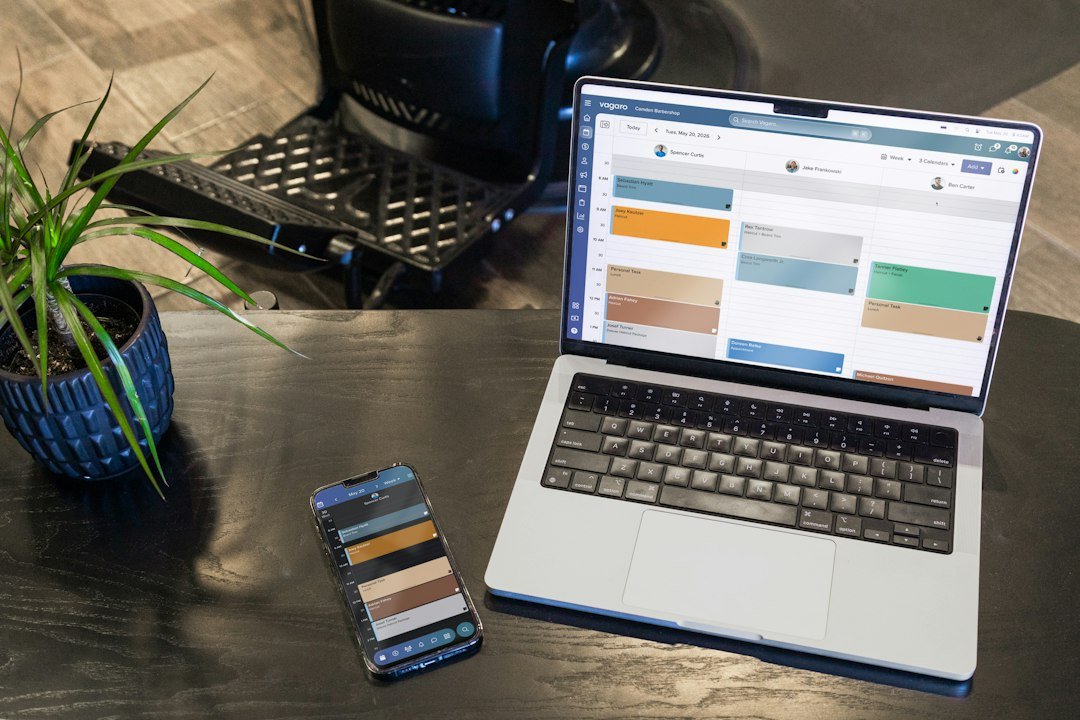
- On phone, turn on automatic camera backup and set the phone to delete locally after upload if you have reliable cloud storage.
- Use rules on your laptop: save email attachments to Documents/Email or use a watch-folder automation to auto-move new files into categorized folders.
- Set a monthly 20-minute “file triage” reminder: empty Downloads, clear trash, and process the TO_SORT folder.
Quick approach to organizing photos
Photos are the most time-consuming. Practical method:
- Export all phone photos to a single folder on the laptop.
- Sort by date; batch-rename folders by year and month (2025/2025-07_SummerTrip).
- Delete obvious bad shots before renaming to save time.
- Apply the photo file-naming rule during import for future consistency.
Troubleshooting common problems
Storage still full after cleaning
Check for large hidden folders: application caches, mail downloads, or system backups. On laptop, tools like Storage Management (macOS) or Storage Sense (Windows) point to large folders. On phone, clear app caches selectively or offload unused apps.
Files changed on both devices — how to avoid conflicts
Keep one device as the “source of truth” for each file type. For collaborative files, use a cloud document editor that handles versioning to prevent sync conflicts.
Accidentally deleted something important
Check the device Trash/Recycle Bin, the cloud service’s trash (they often store deleted files for 30 days), and your local backup. If you used versioned backups, restore the correct version from the backup tool.
- Move new files from Downloads/Desktop to correct folders daily or weekly.
- Back up synced folders automatically and verify the backup weekly.
- Empty Trash/Recycle Bin and cloud deleted items monthly.
- Run a quick duplicate check before big offloads or backups.
- Process the TO_SORT folder in short timed sessions.
Use one shared folder hierarchy and simple naming rules across phone and laptop, sync only active folders, and automate backups. Regular short maintenance prevents clutter from returning and keeps files findable and safe.
Should I organize files on my phone differently than my laptop?
No—use the same top-level structure where possible. Map phone folders to the same categories and sync the critical ones; keep bulky or old items only on the laptop or cloud.
How do I handle many old files at once?
Batch them into dated archive folders (Archive/2020–2022) and move them to external storage or cloud archive, freeing local space while keeping them searchable if needed.
What’s the safest way to delete duplicates?
Move duplicates to an _duplicates folder and keep it for 7–14 days before permanent deletion; ensure a backup exists beforehand.
How often should I back up my organized files?
Critical files: continuous or daily cloud backups; full local backups: weekly. Verify backups monthly by restoring a random file.
Can I rely only on cloud sync for backups?
Cloud sync is convenient but not a complete backup because accidental deletes can replicate; keep at least one separate local or versioned backup for recovery.