

Common small misconception that undermines security
Many people assume a strong password alone will keep them safe. In reality, passwords are just one layer; attackers exploit weak recovery options, reused passwords, phishing, and unattended logged-in devices. The practical steps below patch those everyday gaps.
Start with passwords the practical way
Don't try to memorize dozens of unique complex passwords. Use a trustworthy password manager to generate and store unique credentials. If you prefer a manual approach for a few accounts you absolutely must remember, adopt a long passphrase (4–6 unrelated words) and avoid common substitutions.
- Long trumps complex: a 16+ character passphrase is harder to brute-force than an 8‑character mix.
- Avoid reuse: never use the same password across email, banking, and major accounts.
- Change only when needed: rotate passwords after a breach, not on a rigid schedule that leads to weaker choices.
Enable two-factor authentication (2FA) everywhere it’s offered
Two-factor authentication dramatically reduces account takeover risk. Use an authenticator app (TOTP) or hardware security key for the most sensitive accounts; SMS is better than nothing but is vulnerable to SIM swapping.
- Set up 2FA for email, cloud storage, financial services, and any account that can reset other accounts.
- Store backup/recovery codes securely: print and keep them in a locked spot or save in an encrypted file, not in plain email.
Harden your devices and browsers
Compromised devices let attackers bypass account protections. Keep operating systems and applications up to date, enable disk encryption, and use a modern browser with tracking and phishing defenses.
- Enable automatic updates or check weekly for critical patches.
- Turn on full-disk encryption (FileVault on macOS, BitLocker on Windows, device encryption on phones).
- Use browser settings that block unwanted extensions; only install extensions from trusted sources.
Limit third-party access and review app permissions
Granting wide permissions to apps and services gives them lasting access to your accounts. Periodically audit connected apps and remove anything you no longer use.
- Check “Connected apps” in Google, Apple, Facebook, and similar account settings quarterly.
- For OAuth access, prefer time-limited permissions when available and revoke refresh tokens you don’t recognize.
Lock down account recovery options
Attackers often reset accounts through recovery channels. Treat recovery email addresses and phone numbers as sensitive credentials.
- Use a dedicated recovery email that’s protected by a strong password and 2FA.
- Remove old phone numbers and devices from account settings immediately after changing numbers or selling a device.
- When asked security questions, favor answers that are effectively random and store them in your password manager.
Recognize and avoid phishing and social engineering
Phishing remains the most effective route into accounts. Build simple habits that stop most scams.
- Pause before clicking links in unexpected messages; hover to inspect URLs and watch for subtle misspellings.
- When an email claims urgency about your account, go directly to the official site (type the URL) rather than following a link.
- Use the email provider’s “report phishing” function to help block repeat attempts.
Manage sessions, trusted devices and shared access
Logged-in sessions on forgotten devices are an easy backdoor. Regularly check active sessions and remove stale devices.
- Sign out of devices you no longer use, and revoke sessions you don’t recognize from account activity pages.
- For family-shared accounts, use dedicated family-sharing features rather than one person’s credentials.
- When lending a device, use a guest account or private browsing to avoid leaving access behind.
Keep an eye on account activity and alerts
Security notifications catch many attacks early. Turn on login alerts and review account activity logs weekly for anything unfamiliar.
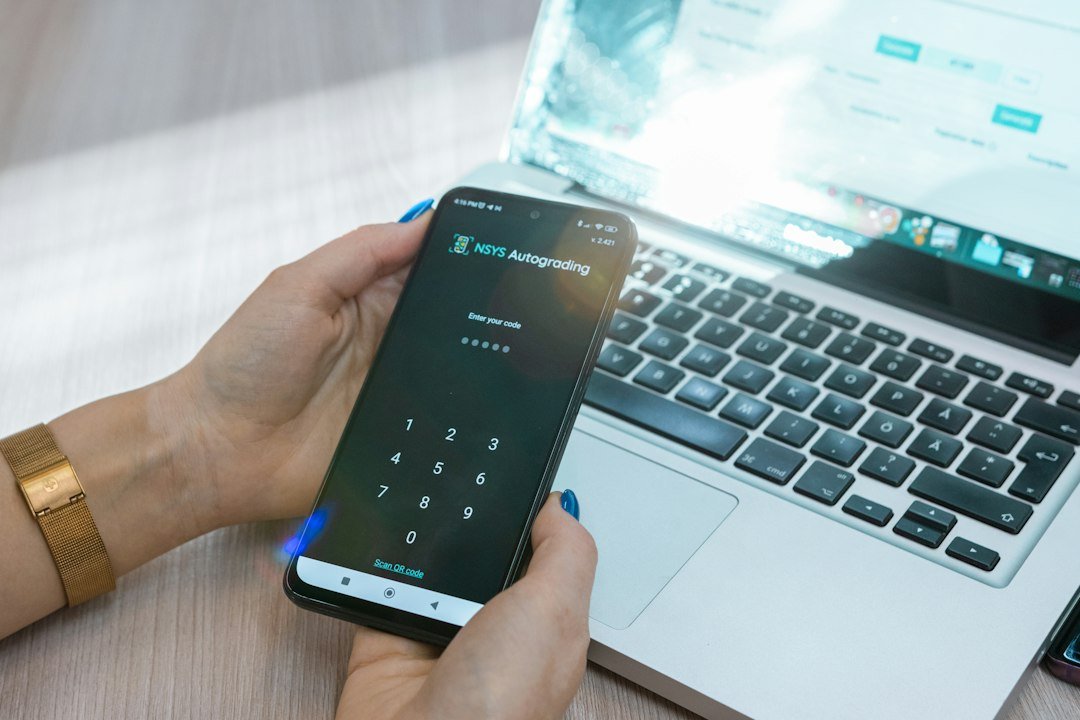
- Enable email or push alerts for new device sign-ins and password changes.
- If you receive an alert you didn’t trigger, lock the account, change the password, and review connected devices immediately.
Practical habit changes that keep you ahead
Small, repeatable habits prevent most compromises without much time cost.
- Spend 15 minutes monthly to run a security checklist: update critical passwords, remove unused apps, check recovery info, and review active sessions.
- Use a separate browser profile for sensitive accounts (banking/email) to reduce cross-site tracking and credential leakage.
- When traveling, use a travel-only device or a clean browser profile and avoid public Wi‑Fi without a trusted VPN.
Quick checklist to do this week
- Set up a password manager and migrate your most important logins.
- Enable 2FA on email and bank accounts; store backup codes offline.
- Run system updates and enable disk encryption on your devices.
- Review connected apps and recovery options; remove old devices and numbers.
- Turn on login alerts and scan recent account activity for unknown sign-ins.
Focus on a few high-impact moves: unique passwords in a manager, strong 2FA, locked-down recovery channels, and brief monthly checks. These steps stop the majority of common account attacks and are manageable in short bursts.
Is SMS two-factor authentication safe enough?
SMS can block many opportunistic attackers but is vulnerable to SIM swap attacks. Prefer authenticator apps or hardware keys for important accounts.
How many accounts need unique passwords?
All accounts should have unique passwords, but prioritize email, financial, cloud storage, and any account that can reset others if you must start gradually.
What should I do if I suspect an account was compromised?
Immediately change the password from a secure device, revoke active sessions, enable 2FA if not set, and review recovery options and recent activity.
Can I securely write down passwords?
Yes—if stored in a safe, not left in plain view. For many people, a single master password in a manager plus a printed backup of recovery codes kept in a locked place balances security and usability.
Do free password managers provide enough protection?
Many reputable free managers offer core protections like encrypted storage and password generation; evaluate features you need (sync, recovery) and use strong master credentials.