End result: noticeably longer time between charges and slower battery wear
If your goal is to get more usable hours per charge and reduce long‑term capacity loss, this guide shows the exact, practical habits and settings to change today and over time. The focus keyphrase for this article is phone battery life; you'll see it used where it matters.
Quick checklist you can run now (5 minutes)
- Lower screen brightness and set adaptive/auto-brightness.
- Turn off push mail for nonessential accounts or increase fetch interval.
- Enable battery saver / low power mode.
- Close or restrict high‑drain apps (location, streaming, games).
- Unplug charger at around 80–90% if you want to reduce long‑term wear (optional).
Reduce screen and sensor drain
Screen time is usually the largest single energy consumer. To extend phone battery life right away:
- Lower brightness manually to the level you can tolerate and enable auto‑brightness or adaptive brightness so the phone reduces output in darker conditions.
- Reduce screen timeout to 15–30 seconds so the display turns off quickly when idle.
- Switch to a darker theme or system dark mode; on OLED screens dark pixels use less power.
- Turn off always‑on display features and high refresh rates (90–120Hz) when you don't need ultra‑smooth motion.
Control app behavior that secretly uses battery
Background apps, location services, and push notifications can drain power even when the screen is off. Take these practical steps:
- Open your battery usage screen (Settings → Battery) and sort apps by consumption. For apps you don’t use frequently, force stop or restrict background activity.
- Limit location access to “While Using” or “Ask” instead of “Always.”
- Turn off background app refresh for apps that don't need constant updates (social media, shopping, weather with push alerts).
- Disable unnecessary push notifications or set them to summary modes so the phone wakes less often.
Change network and connectivity settings thoughtfully
Wireless radios (cellular, Wi‑Fi, Bluetooth) consume power. Adjust them to suit your routine:
- Enable Wi‑Fi when it’s available — Wi‑Fi generally uses less power than a weak cellular signal.
- Turn off Bluetooth and NFC when not in use. Use airplane mode in low‑signal areas where your phone constantly searches for service.
- If you travel and don't need voice/data, use airplane mode and enable Wi‑Fi as needed.
Adopt better charging habits to protect battery health
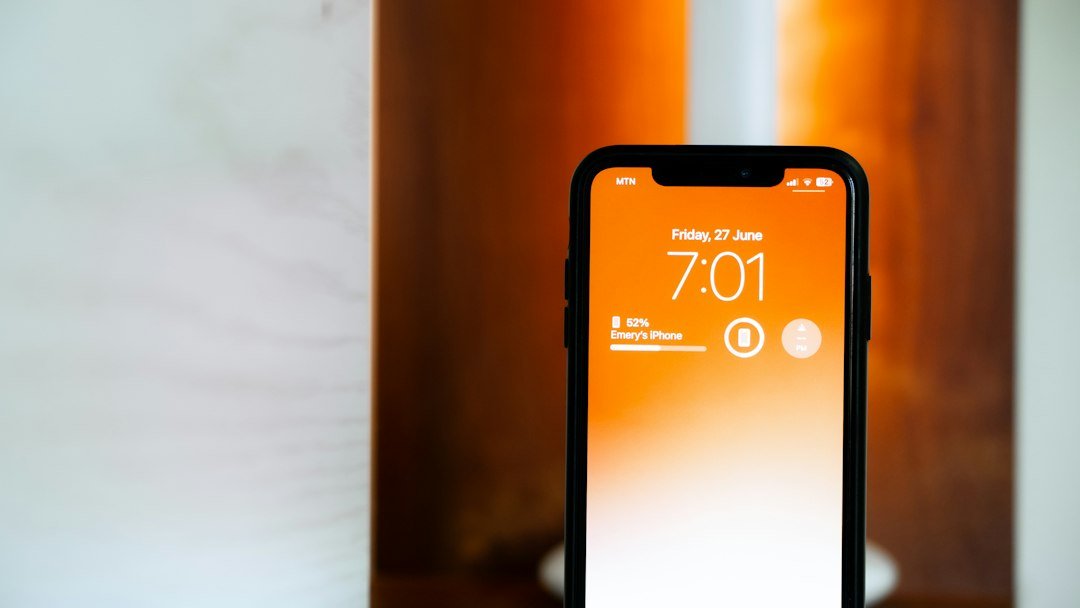
Modern lithium‑ion batteries don't need full discharges but do suffer from extreme states. Use these practical rules:
- Avoid letting the battery sit at 0% or 100% for long periods. Charging in the 20–80% range reduces stress and can slow capacity loss.
- Frequent short charges are fine — partial charges are better than deep cycles.
- Avoid charging in very hot environments (like under direct sun or on top of a laptop) and remove thick cases if the phone gets hot while charging.
- Fast charging is convenient. Use it when you need a quick top‑up, but avoid constant use of the fastest modes if you want the best long‑term health because higher temperatures accelerate wear.
Keep your phone cool — temperature matters
Heat shortens battery life faster than most people realize. Practical steps:
- Don't leave your phone in a hot car or in direct sun while charging.
- If your phone becomes hot during heavy use (gaming, navigation), take breaks and close demanding apps.
- Remove metal or heat‑trapping cases during long charging sessions to allow heat to dissipate.
Software maintenance and updates
System updates often include battery optimizations. Also:
- Keep the OS and apps updated, but if a specific update introduces a bug that causes drain, check app reviews or official notes before updating immediately.
- Reboot your phone occasionally; this ends stuck processes that can eat battery in the background.
- If you notice sudden unexplained drain after an app update, try reinstalling that app or checking its background activity permissions.
When to recalibrate and when to check battery health
Occasional calibration helps the system report battery percentage accurately but doesn't improve capacity. To recalibrate:
- Use the phone until it turns off from low battery.
- Charge uninterrupted to 100% and leave it at 100% for about an hour.
- Restart the phone.
Check battery health (if your phone shows a battery health percentage). If health falls below ~80% after a couple years you may notice shorter runtimes; then either accept shorter intervals between charges or consult service options if you need longer life.
Troubleshooting sudden battery drain
If your phone's battery life suddenly worsens, follow this quick diagnostic order:
- Restart the phone.
- Check battery usage to identify any app using an unusually large share; restrict or uninstall it.
- Turn off location, Bluetooth and background refresh to see if drain slows.
- Boot into safe mode (Android) or remove recent app installs to isolate a buggy app.
- If nothing helps, back up and perform a factory reset as a last resort — software corruption can cause persistent wake locks.
Practical trade-offs and when to prioritize convenience
Every tip has a convenience cost: limiting background activity may delay notifications; reducing refresh rates makes animations less smooth. Decide which trade‑offs you accept daily versus for long trips or critical days. Use battery saver automatically for days you expect heavy use.
- Set screen timeout short and use auto‑brightness.
- Restrict background refresh and location for nonessential apps.
- Enable low power/battery saver when needed.
- Avoid charging to 100% daily; keep between ~20–80% when convenient.
- Keep the phone cool and remove case if it overheats while charging.
Focus first on screen and app settings to gain immediate hours per charge; adopt charging and temperature habits to slow long‑term wear. Choose simple trade‑offs you’re willing to live with and make them routine.
Does turning off 5G save battery?
Yes in many cases: 5G can use more power, especially when signal is poor. If battery life is critical, switch to LTE in settings or use the phone's recommended network mode.
Is it bad to leave a phone charging overnight?
Occasional overnight charging is fine; prolonged 100% at high temperature can accelerate wear. Use built‑in optimized charging features if available.
Will closing apps save battery?
Closing a currently misbehaving app can help, but routinely swiping away apps often is unnecessary—modern OSes manage suspended apps efficiently. Restrict background activity instead.
How often should I calibrate the battery?
Calibrate only when the percentage readout seems inaccurate, no more than a few times per year; frequent full cycles stress the battery.
Can a phone case cause battery drain?
Indirectly: a case that traps heat can increase battery temperature during heavy use or charging, which accelerates wear and may throttle performance.